First-time login
The dashboard is a website. Your admin sends you a link and login credentials (email + password). Bookmark the link. You'll open it every day.
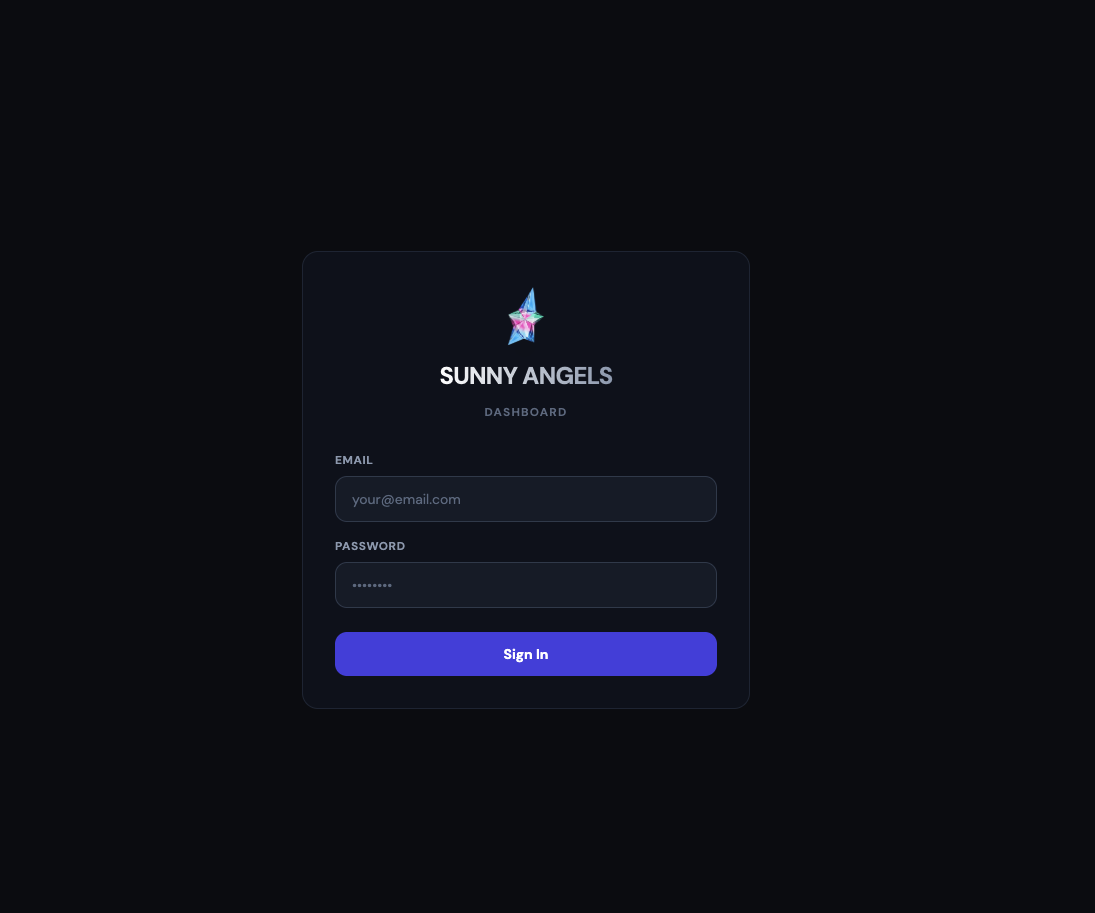
Step by step
- Open the dashboard link your admin sent you.
- Type the email you received. Most worker emails look like
yourname@workers.sa-internal.com. - Type the password from your welcome message.
- Click Sign In.
- If you were assigned more than one model, a picker appears. Tap the model you want to work on today. You can switch models later from the profile menu (top right).
The onboarding overlay
Right after your very first successful login, a full-screen onboarding overlay pops up. It walks you through the dashboard in a few short slides. Read all of them. It's the fastest way to understand what each part is for.
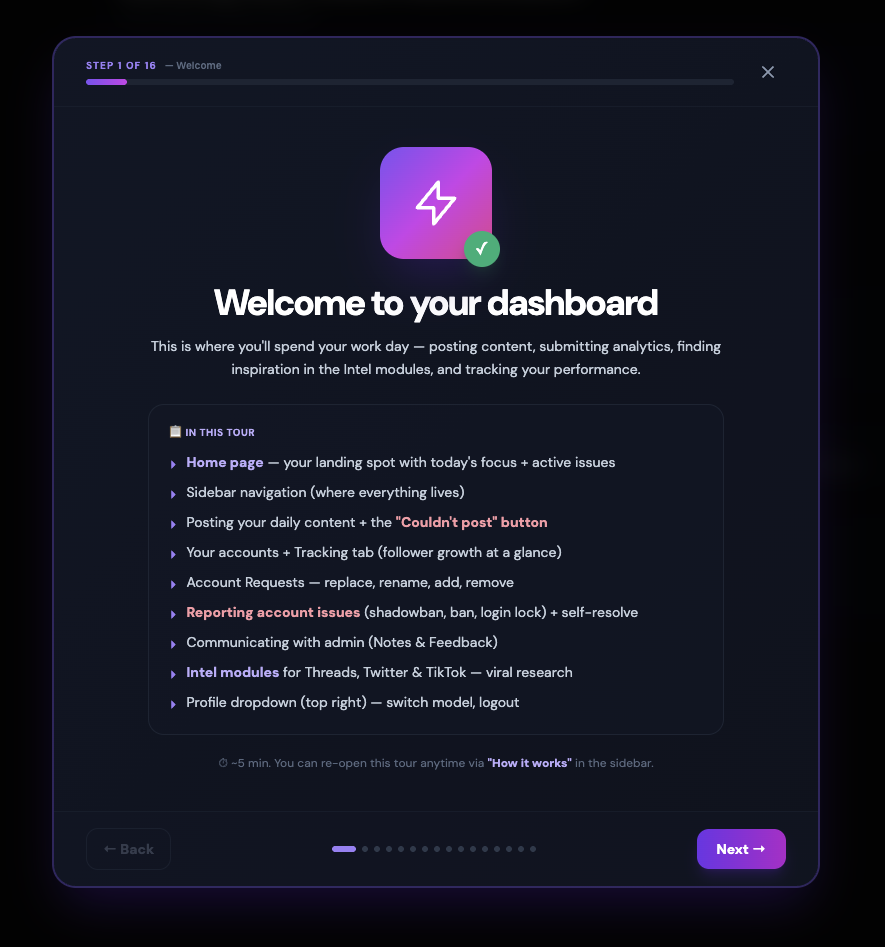
You can re-open this any time later from the How it works tab in the sidebar (the top button, marked violet). Do not close it and forget it exists. It's the reference for every button and every color code in the app.
Phone vs. Desktop (read this once)
The dashboard runs both on a laptop / desktop browser and on your phone browser. The content is the same, but the layout adapts. Knowing where things sit on each will save you a lot of confusion later.
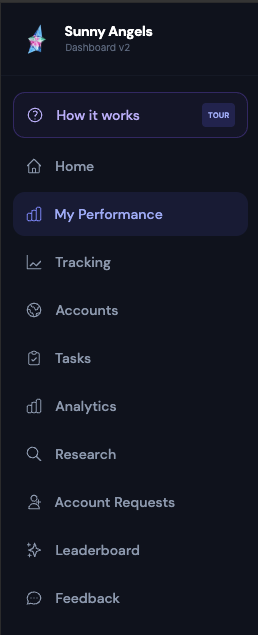
The sidebar (all tabs live here)
Desktop / laptop
The sidebar is always visible on the left edge of the screen. Every tab (Home, Tasks, Analytics, etc.) is one click away. You never open a menu to reach it.
Phone
Screens are too narrow for a permanent sidebar, so it's hidden by default. Open it with the menu icon (three lines, ☰) at the very top-left of the header. A drawer slides in from the left with the same list of tabs. Pick one, and the drawer closes automatically. Close it manually by tapping outside it, or tapping ☰ again.
Layout differences you'll notice
- Tables (like Tracking) become card lists on the phone. Same data, stacked vertically so it doesn't spill off the screen. See the Tracking section for a concrete example.
- Forms and dropdowns use the full screen width on the phone (so they're easy to hit with a thumb). On desktop they stay narrow.
- Detail panels. when you tap an account or worker for details, on desktop a panel slides in from the right; on phone it takes over the whole screen (close with the ✕ button top-right).
- Screenshots in this tutorial mostly show the desktop layout. On phone the same buttons and sections exist, they're just arranged vertically instead of side-by-side.
Which one should I use?
Both work. Rule of thumb:
- Phone is faster for daily work: submitting posts, marking reels done, filing "Couldn't post" excuses. The platforms you're posting on are on your phone anyway, so copy-pasting URLs is one hop.
- Desktop is better when you review a lot of data at once: reading the Tracking table across 30 days, comparing accounts, reading long guide sections, filling out weekly Analytics for many accounts.
How it works (violet button, top of sidebar)
The button labelled How it works at the very top of the sidebar (violet border) re-opens the same onboarding slides you saw on your first login. Any time you're not sure what a section does or a new feature was added, come back here.
Home
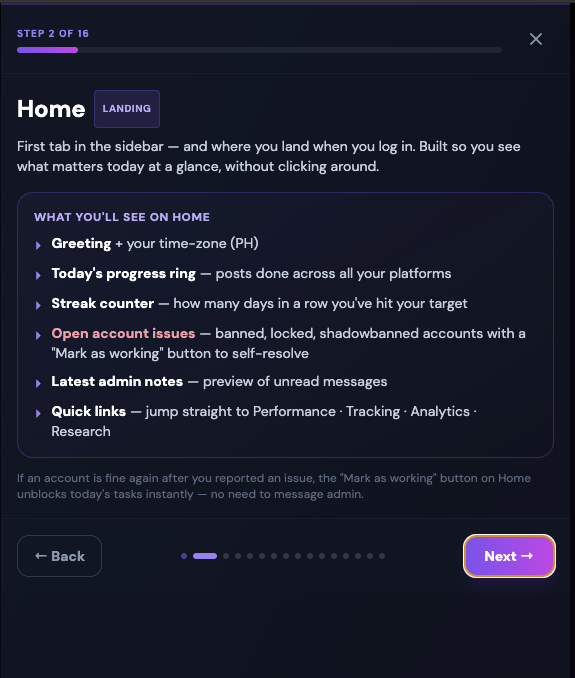
The Home tab is your daily landing page. Every time you log in, you see this first. It answers one question at a glance: "What do I still have to do today?". and gives you shortcuts to everything else you need.
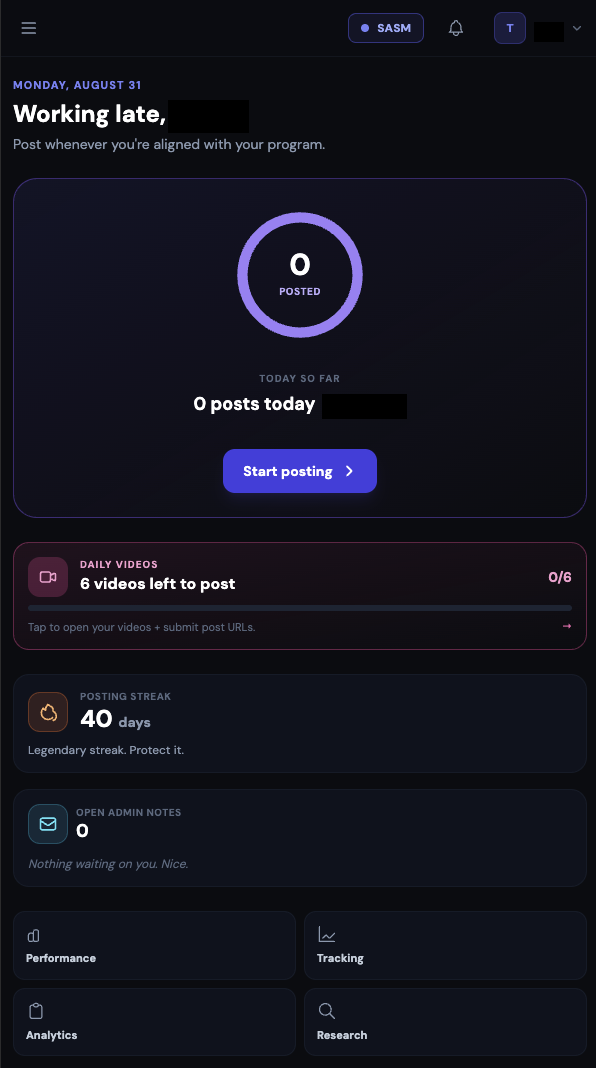
Sections you see, top to bottom
Greeting
Today's date and a time-based hello: "Good morning", "Good afternoon", "Good evening", or "Working late" late at night. Followed by your name. A short sub-line tells you where you stand: "Here's what your day looks like", "All set for today. Nice work.", or "You're on time off today. Enjoy it."
Time-off card (only if you're on leave today)
If admin scheduled a leave for you and today falls inside it, the progress card is replaced by an amber Time off banner showing the leave dates. No posting required. Your streak is paused, not broken, and picks up when you're back.
Progress ring + platform pills
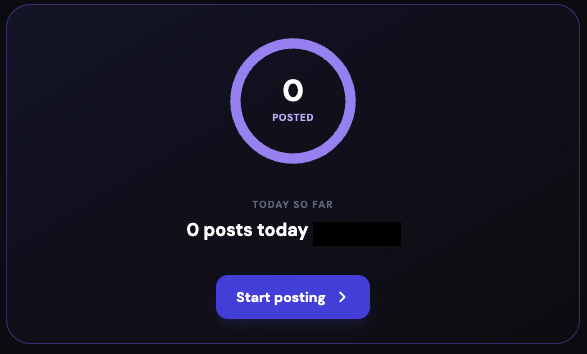
The big card near the top shows a circular progress ring with today's % in the middle (not a horizontal bar). Green when you're done, indigo mid-way, amber when you're behind. The line next to it reads "X of Y posts done", and small colored pills below show the split per platform (TT 3/5, X 1/3, TH 0/3, FB 1/1, IG 2). A large Start posting / Review today button jumps you straight into the Tasks tab.
Daily Videos shortcut (only if videos exist for today)
If admin uploaded AI-videos for you today, a purple shortcut card appears above the streak grid. Tap it → jumps you to the Daily Videos section in Tasks.
Two cards side-by-side: Posting Streak + Open Admin Notes
- Posting Streak. how many days in a row you completed your tasks. Comes with a motivational one-liner ("Keep going. Momentum builds fast", "You're on fire. Don't break it", etc.). Resets to 0 the day you leave something undone.
- Open Admin Notes. how many admin notes are currently open on you, plus a preview of the two most recent. Tap Open → to jump to the Feedback tab where you reply and resolve them.
Open account issues banner (only if any incidents are active)
If any of your accounts is currently flagged as Shadowban / Action Block / Login Lock / Takedown / Banned / Warning, a red-bordered banner lists each affected account. Each row shows the incident type, account name, and how long ago it was reported. For most incident types there's a green Mark as working button. Hit it as soon as the account is fine again and your Tasks unblock for it. Exception: banned accounts can't be self-resolved. Admin has to replace the account first via your Account Request.
Quick links row (4 buttons)
A row of shortcut buttons to your most-used tabs: Performance, Tracking, Analytics, Research. Same as tapping them in the sidebar. Just faster from Home.
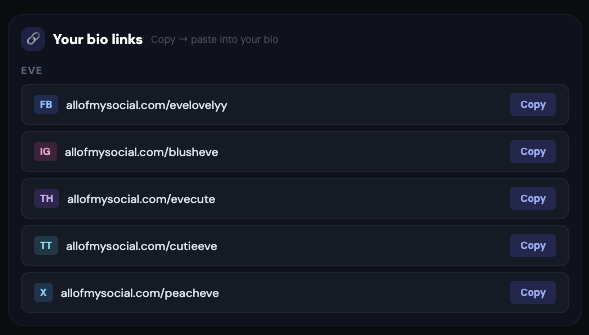
Your bio links
The AOMS bio-link URLs assigned to your model. The URL you paste into the account's Instagram / TikTok / etc. bio (the "website" field). Tap the copy icon next to a URL and it lands in your clipboard. If your model's bio-link was recently changed, a popup at the top of Home also nudges you to update the bios.
My Performance
This tab shows how the accounts you manage are actually doing. Follower growth, views, which accounts are growing vs. declining, and your recent posting activity. There is no single "score" here; the tab is a set of dashboards you read like a report. Almost every heading has a small ⓘ info button next to it. Tap it any time you're unsure what a section means.
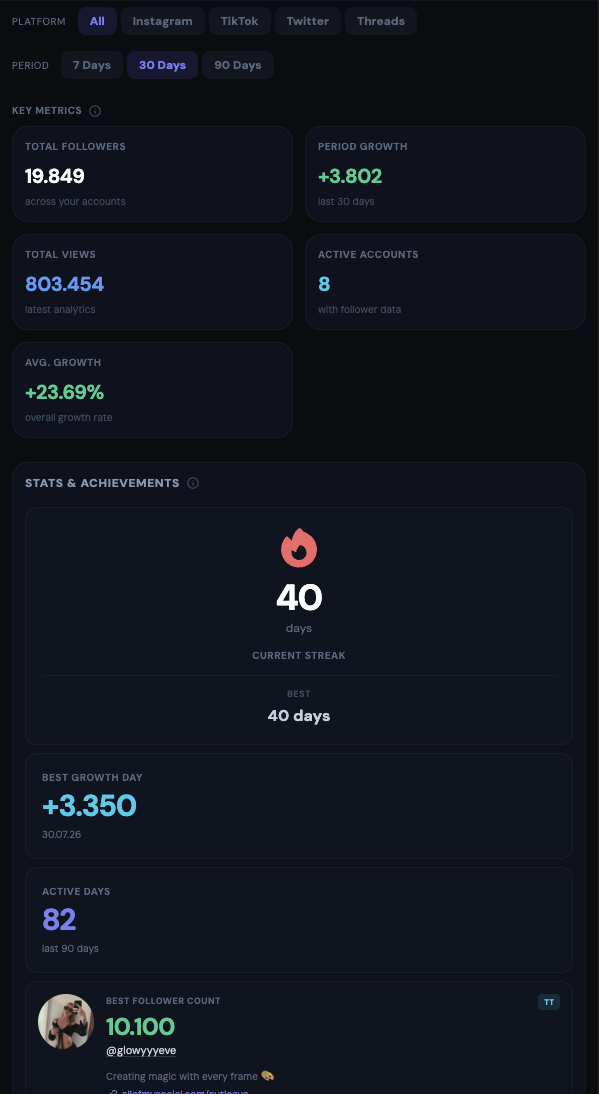
Filters at the top
Everything below the header updates when you change these two filters:
- Platform. All / Instagram / TikTok / Twitter / Threads. Pick one to isolate the numbers for that platform, or leave on All.
- Period. 7 Days / 30 Days / 90 Days. The comparison window for growth and views.
Key Metrics (5 KPI tiles)
- Total Followers. sum across all your accounts (in the selected platform).
- Period Growth. how many followers you gained (green +) or lost (red −) over the selected window.
- Total Views. from your most recent weekly analytics submissions.
- Active Accounts. how many of your accounts have follower data being scraped.
- Avg. Growth. the average % growth rate across your accounts.
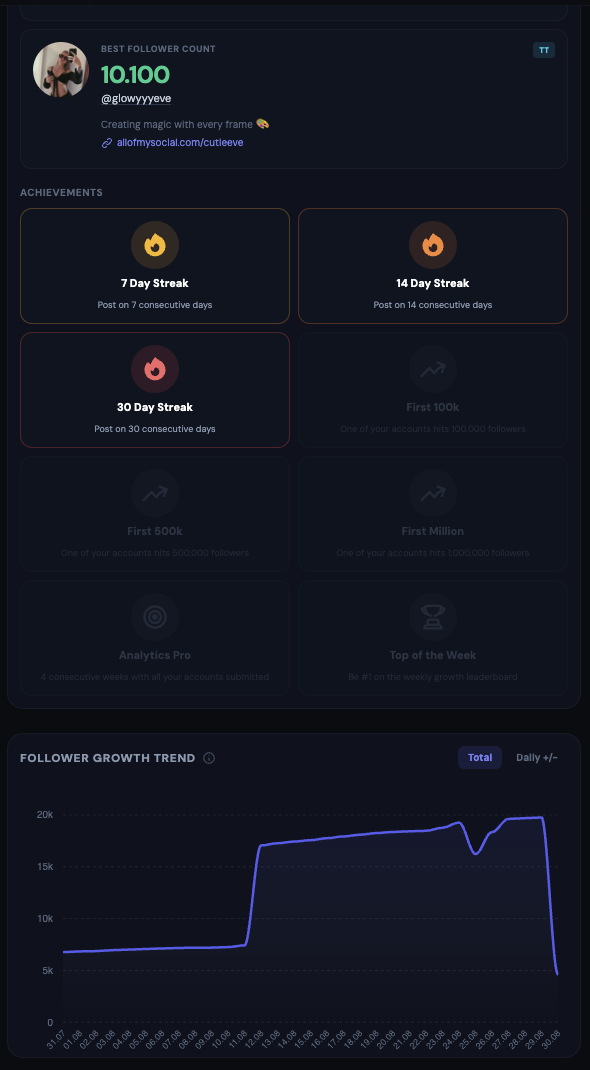
Stats & Achievements
Your personal streaks, achievements, and personal-best records. Streaks (like posting-days-in-a-row) reset when you skip a day, so this section is your motivator to stay consistent.
Follower Growth Trend (chart)
A chart of follower counts over the selected period. Two modes via the buttons top-right:
- Total. the running total of followers, day by day. Look for an upward slope.
- Daily +/−. a bar per day showing net change. Green bars are gains, red bars are losses.
Quick Leaderboard
Two mini-lists on the right side of the chart row:
- Top Growth. your 5 fastest-growing accounts in the period.
- Top Views. your 5 highest-view accounts from the latest analytics.
Use this to see which accounts are actually pulling their weight. And which need attention.
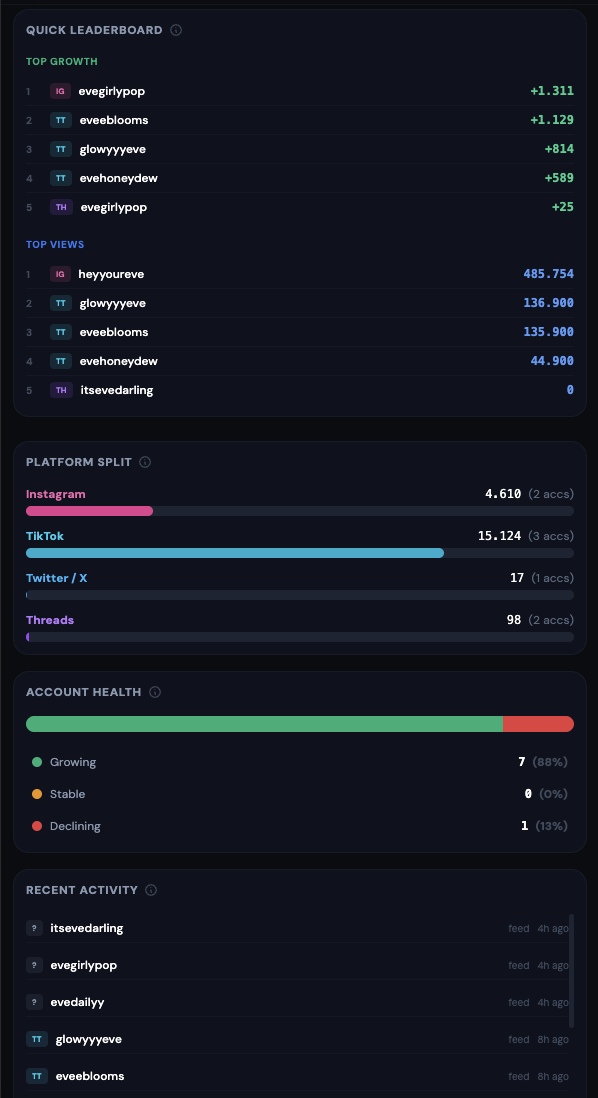
Platform Split
A horizontal bar per platform (IG / TT / TW / TH) showing how your total followers are distributed. Also shows the number of accounts per platform.
Account Health
A stacked bar that groups every account you own into three buckets:
- Growing (green). Followers went up in the period.
- Stable (amber). No meaningful change.
- Declining (red). Followers went down. These are the accounts to prioritize.
Recent Activity
Your last 15 posting actions: each row shows the platform badge, the account, and how long ago you posted. Excused rows (from "Couldn't post") appear here too, marked "excused".
Your Viral Posts (only when TikTok is in the filter)
Grid of your TikTok posts that crossed the viral threshold. Only visible when the platform filter is All or TikTok. the other platforms don't have viral tracking here.
Tracking
The Tracking tab shows the daily follower change over the last 30 days, one row per account. Its job is to answer at a glance: "Which of my accounts are actually growing, and which are quietly bleeding followers?"
How the daily colors work (same on desktop and phone)
Each day's cell is colored by that day's follower change:
- Bright green. big gain (≥ 50 followers)
- Medium green. solid gain (10–49)
- Light green. small gain (1–9)
- Grey. no change (0)
- Light red. small loss (1–9)
- Medium red. clear loss (10–49)
- Bright red. heavy loss (≥ 50)
- Empty / dark. no data was scraped that day (or the account was created after that day)
Desktop: the table view
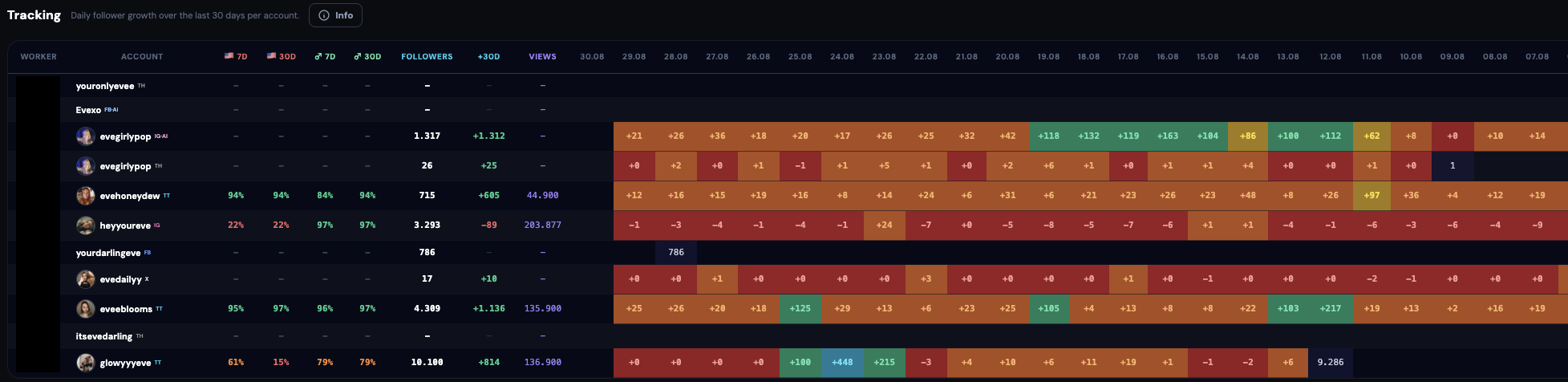
On a laptop / desktop browser you see a wide table:
- Rows = one row per account you manage (all your accounts sit under a single "your name" header).
- Columns = the first two columns are Worker (that's you) and Account; the next 30 columns are one column per day (oldest on the left, newest on the right).
- Cells are colored per the legend above. Hover a cell to see the exact number for that day.
- Scroll right to see older days; scroll down if you have many accounts.
- On smaller screens, the Worker and Account columns stay pinned on the left when you scroll horizontally. You never lose track of which row you're reading.
Phone: the card view
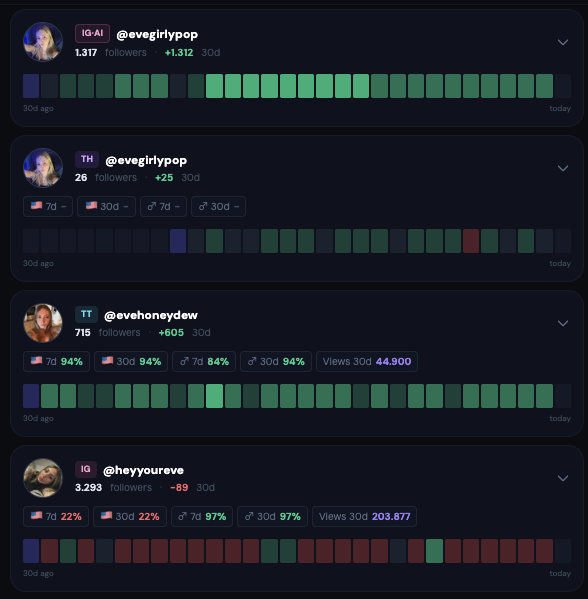
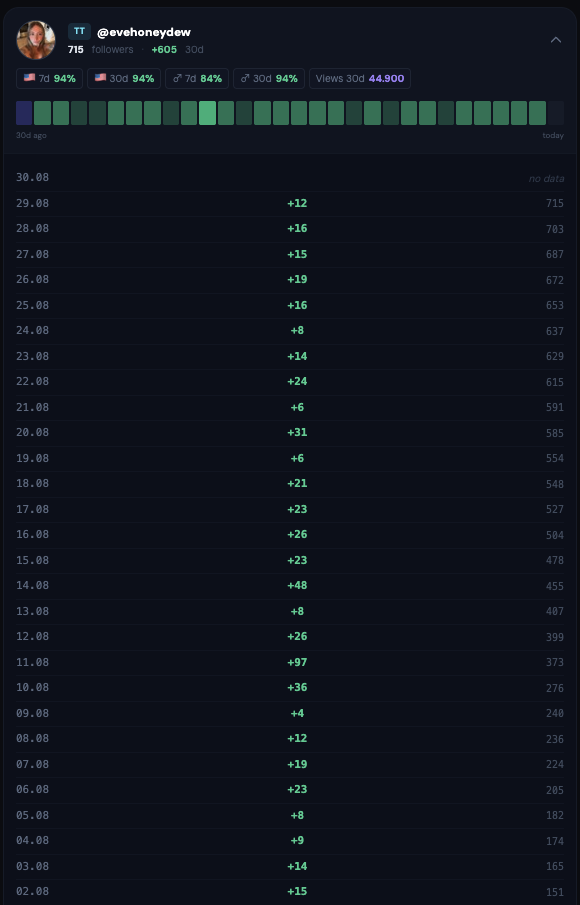
On your phone the table is replaced by one card per account, stacked vertically:
- Each card shows the account's profile picture, @handle, platform badge (IG / TT / TW / TH / FB), current follower count, and the 30-day change (a green + or red − number).
- Below that: a 30-day heatmap strip. 30 tiny colored bars in one row, oldest on the left, newest on the right. Same color rules as the desktop cells.
- Small info chips below the strip show the latest weekly-analytics numbers when submitted: 🇺🇸 US audience %, male audience %, Views 30d.
- Tap a card to expand it and see the per-day numbers as a list.
What to do with what you see
- Scan for accounts with a run of red days. Those need attention first.
- Cross-check with My Performance → Account Health to confirm the pattern (that section groups the same info as Growing / Stable / Declining).
- For a specific declining account: think about content, posting frequency, and whether the platform might be shadow-blocking it.
- Ban or lockout patterns → report via Account Requests (Replace or Remove). Content-driven decline → note it in the next weekly Analytics submission for that account.
Accounts
The Accounts tab is a searchable list of every account you manage, with the numbers next to each. Use it when you want to look up a specific account, compare a few side by side, or sort your accounts by growth or health without scrolling through the Tracking heatmap.
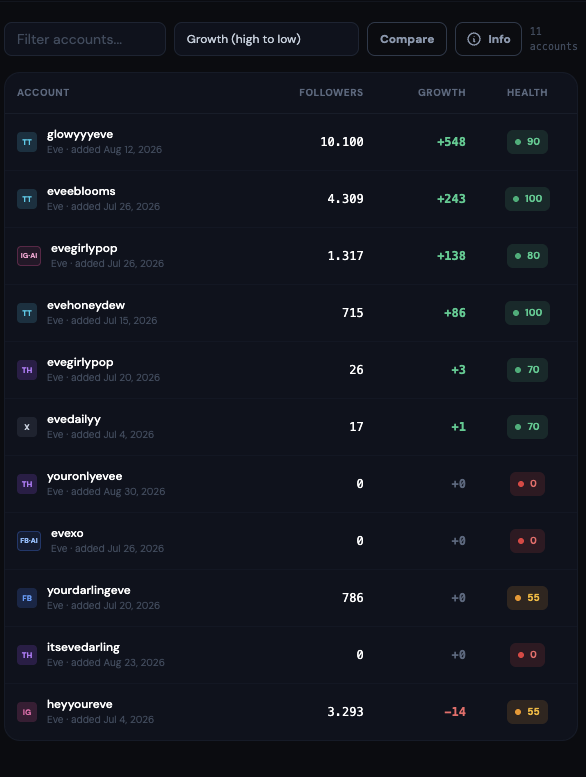
Top row of controls
- Filter accounts… input. Type a handle or part of a handle to shrink the list to matches.
- Sort dropdown with 7 options: Growth (high to low / low to high), Followers (high / low), Name (A. Z), Health (best first / worst first).
- Compare button. Turns on selection mode so you can tick 2 or more accounts and open a side-by-side comparison of their numbers.
- Info (ⓘ) button. Opens a modal that explains every column in detail.
The columns
- Account. The @handle plus platform badge.
- Worker. Your name (hidden on very narrow phone screens).
- Bio Link. The bio-link URL currently in the account's bio (hidden on smaller screens).
- Followers. Latest count from the scraper.
- Growth. Change over the last period (green +, red −).
- Health. Colored dot: green (growing), amber (stable), red (declining), grey (no data).
- Trend. Tiny sparkline of the last few follower snapshots (hidden on medium screens and smaller).
Comparing accounts side by side
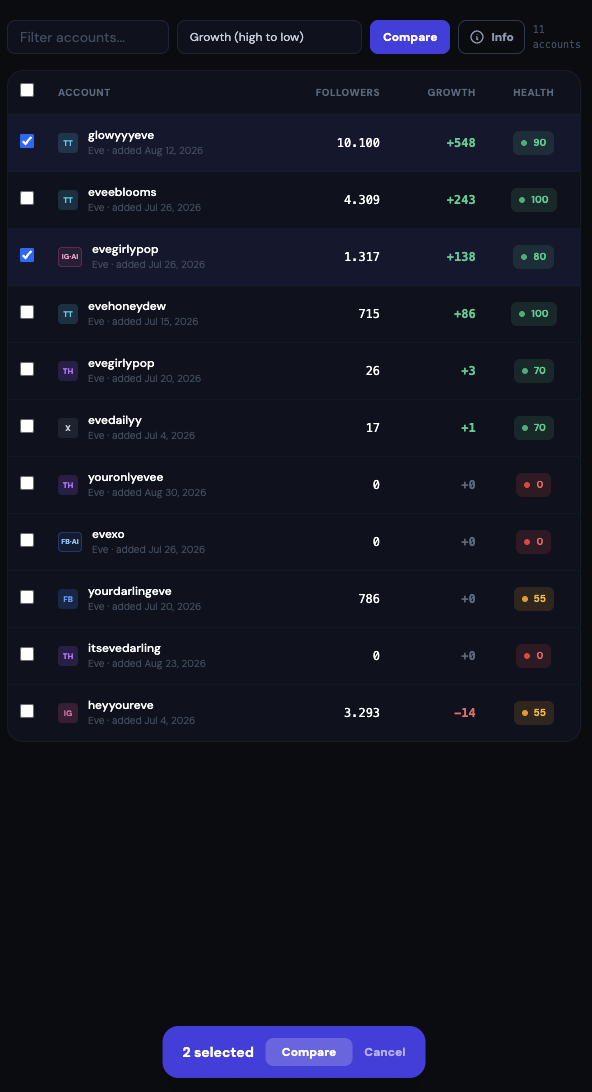
- Tap Compare in the top row. Checkboxes appear on each account row.
- Tick 2 or more accounts.
- A blue bar sticks to the bottom of the screen showing how many you've selected. Tap Compare on that bar.
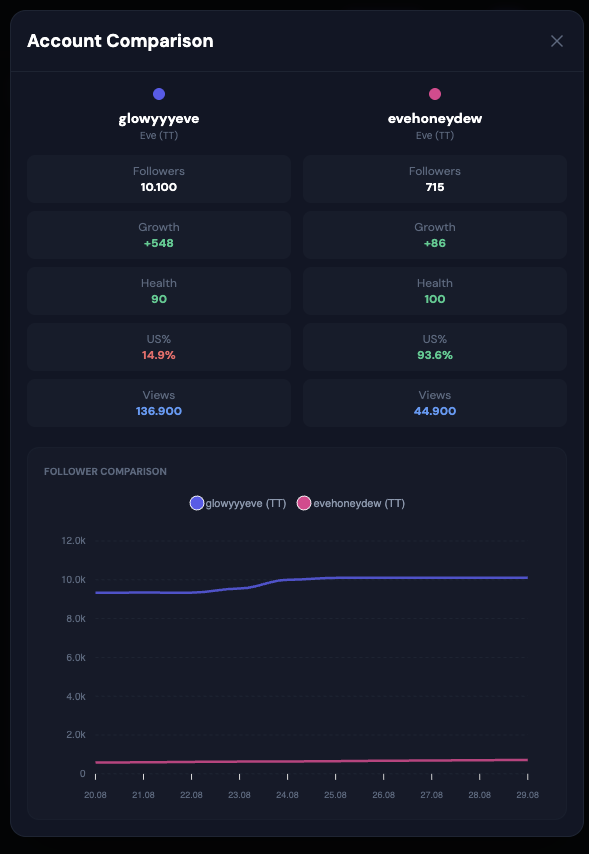
- A modal opens showing all selected accounts side by side: followers, growth curves, analytics numbers, recent activity.
- Close with the ✕. Tap Cancel on the bottom bar to leave selection mode without comparing.
Opening a single account
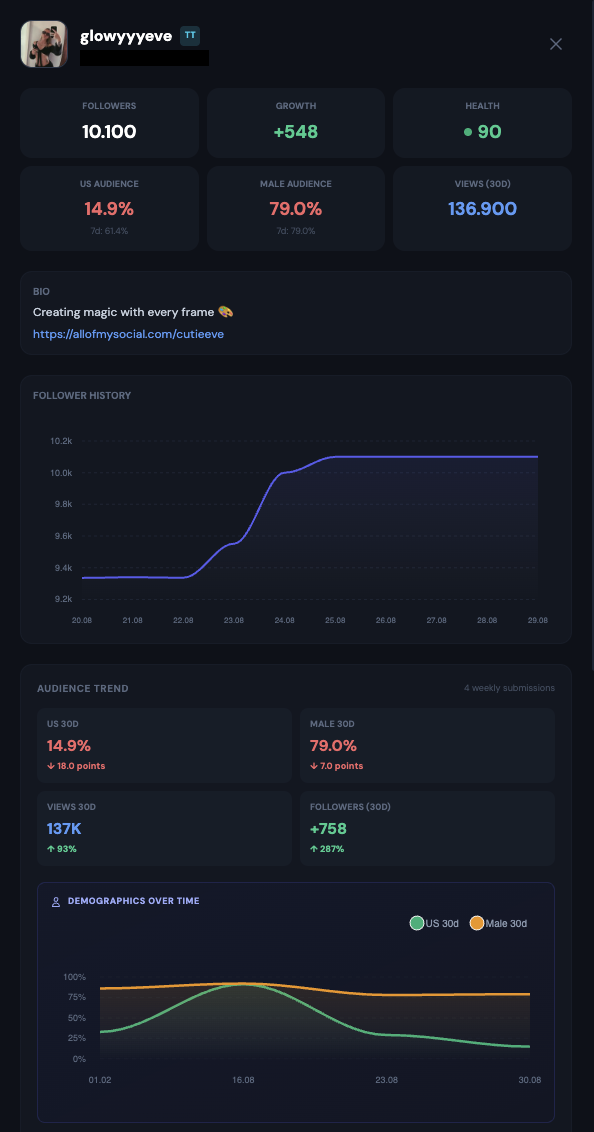
Tap any row (outside selection mode) to open the account detail panel. On desktop it slides in from the right and takes about half the screen; on phone it takes the whole screen. Inside you get: follower chart, latest analytics, bio-link history, recent posts, incident log. Close with the ✕ button in the top-right corner.
Tasks
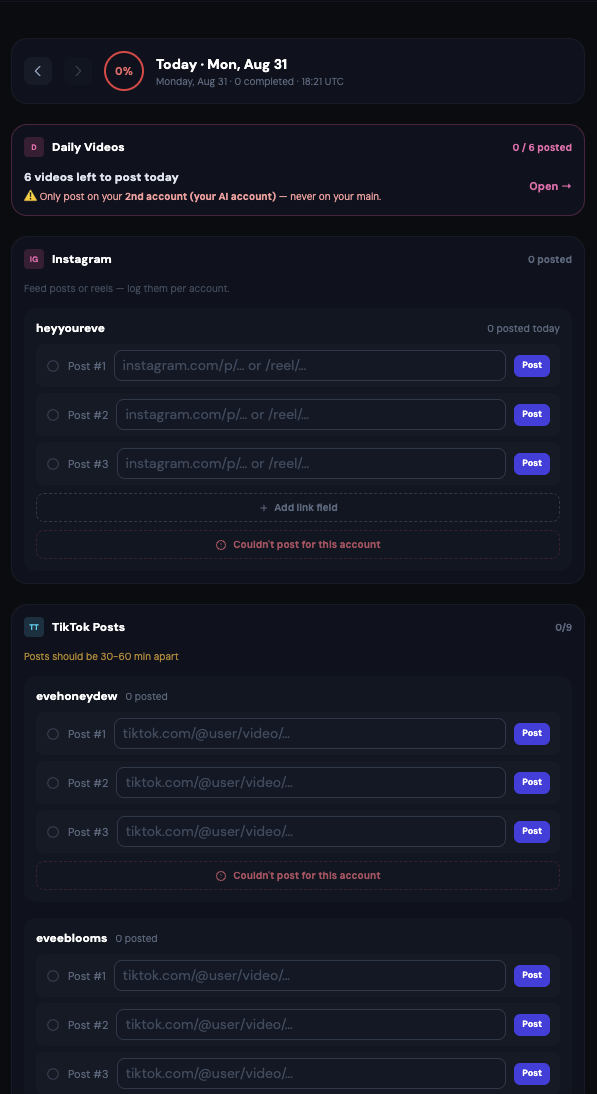
The Tasks tab is where you do the actual work: submit post links, mark reels as done, upload Daily AI Videos, and log a "couldn't post" note when something went wrong. All your accounts are grouped here by platform.
Which day am I looking at?
The tab defaults to today (Philippines time. The same day admin sees). Arrows above the account list let you navigate back through the last 7 days:
- Today. fully editable, this is where you submit new posts.
- Yesterday. still editable in a short window so you can add a late link or fix a mistake.
- 2–7 days ago. read-only. You can look but not change. Older than 7 days is not available on this tab; use My Performance / Tracking for older data.
If yesterday was incomplete and you land on Home this morning, a popup nudges you about it. Handle it either by filing a "Couldn't post" for those accounts (yesterday view) or letting it stand as a miss.
Time off (leave) view
If admin scheduled leave for you and the day you're viewing falls inside it, the whole task list is replaced by a big amber Time off banner instead of quota rows. No posting required. Your streak is paused. It picks up where it left off when you return.
Reading an account row
Each account you manage gets a row inside its platform section (Instagram, TikTok, Twitter/X, Threads, Facebook). Each row shows:
- The account name and handle
- A counter like
2/4. posts done today out of today's quota - Empty input fields waiting for your post URLs
Auto-excused accounts (banned, login lock, etc.)
If admin reported a severe incident against one of your accounts (banned / takedown / login lock / action block) and it's still active, the account is automatically excused for today. You don't need to file a "Couldn't post". You'll see a small note on that account's row. The auto-excuse rolls over every day until admin marks the incident resolved or replaces the account.
About the daily quotas
Every platform has a daily post quota per account. The number you see (like 2/4) is your target for that day, decided by admin. Not fixed forever.
Submitting a post
- Actually publish the post on the platform (Instagram / TikTok / Twitter / Threads / Facebook).
- Copy the URL of the specific post you just published. Not the URL of your profile page.
- Come back to the Tasks tab, find the account row you posted from.
- Paste the URL into an empty input field.
- Tap Post. The link is saved, the counter goes up by one, and admin sees your submission in real time.
https:// and open the exact post when clicked. The bare profile URL is rejected. Instagram, TikTok, Facebook and Twitter all have a way to copy the post URL. Usually via the share icon.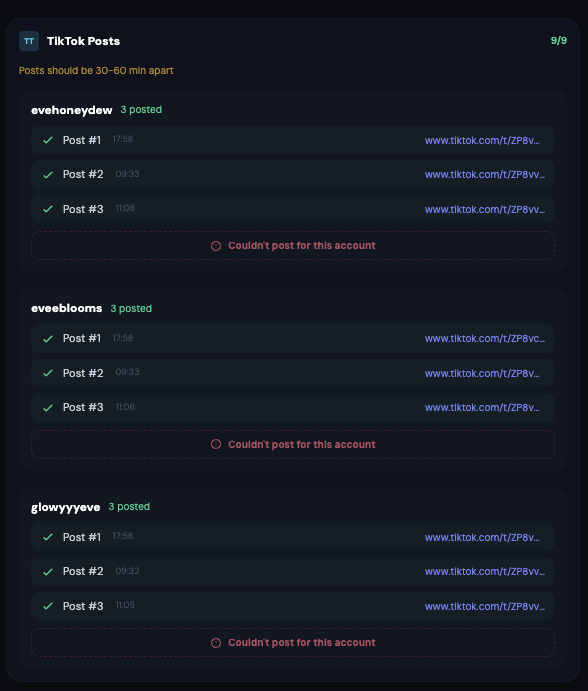
Deleting a wrong link
If you pasted the wrong URL, a small × icon appears next to each submitted link. Tap it. The link is removed and your counter drops back. This only works within a short time window after you submitted; older links are locked to keep the history clean.
Couldn't post today?
Something stopped you from posting on an account today. The app crashed, the account is temporarily locked, no content was ready, whatever. Don't just leave the slot empty. That counts as a missed post and hurts your score.
Instead, at the bottom of every account row you'll see a small red-bordered button:
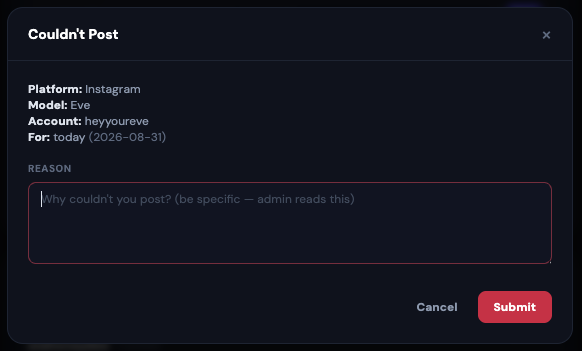
- Tap Couldn't post for this account.
- Type a clear reason (at least 5 characters). Be specific: "IG rejected 3 attempts, error 500" is useful; "nope" or "idk" is not.
- Tap Submit.
Admin sees your request in the "Couldn't Post" review queue and either approves it (the missed post no longer counts against you) or asks for more detail.
Reels (Instagram only)
If you're whitelisted for reels, a Reel Post card appears at the bottom of Tasks. Reels are always Instagram. They come in two ways: admin assigns one to you, or you request one yourself.
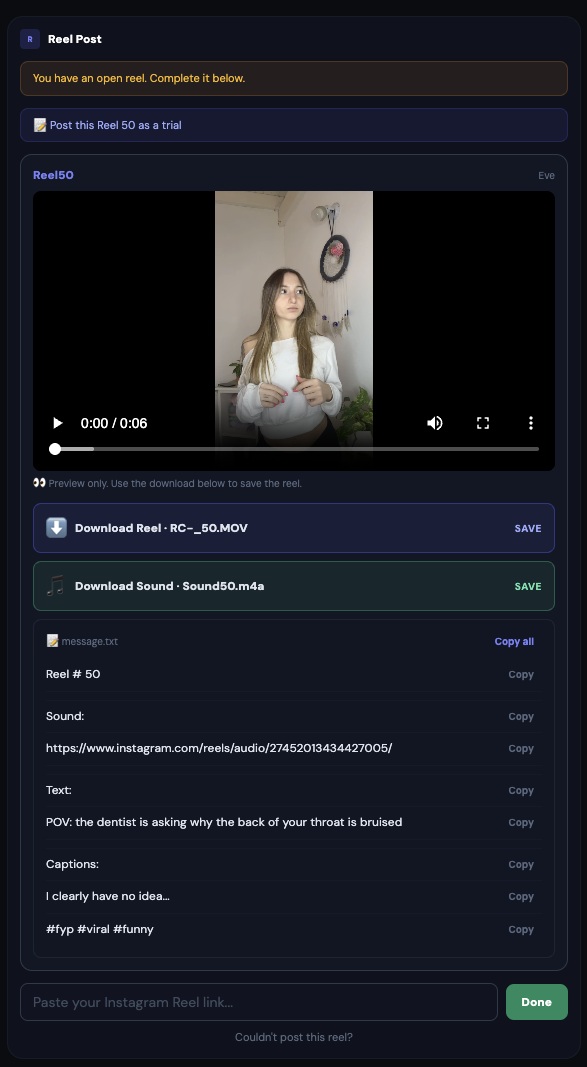
Working through a reel
- The card shows the reel number, admin's note (if any), and the video file(s) to download.
- Download the video. Post it as a Reel on the Instagram account this model owns.
- Copy the URL of the reel you just posted. It looks like
https://www.instagram.com/reel/Cxxxxxxx/. - Paste it into the input field on the reel card (placeholder: "Paste your Instagram Reel link...").
- Tap the green Done button.
If admin assigned you more than one reel for the same day, the next reel appears immediately after you finish the first. Complete them all. There is no cooldown between admin-assigned reels.
Requesting a reel yourself
If nothing is assigned but you want to work on one, tap the blue Get My Reel button. The dashboard picks a random unassigned reel for your model. A 16-hour cooldown applies between self-fetched reels, so you can't burn through the whole pool at once. Admin-assigned reels are exempt from this cooldown.
Couldn't post the assigned reel?
If the reel admin assigned you can't be posted for some reason (video corrupted, account temporarily locked, content problem), there is a small link under the reel card: Couldn't post this reel?. Tap it, write a clear reason, submit. Admin reviews and either releases the reel back to the pool or reassigns it. Do not just leave it sitting on your card, that blocks the reel from anyone else.
https://www.instagram.com/reel/… or https://www.instagram.com/p/…. Nothing else is accepted.Daily AI Videos (only if you have AI accounts)
If your model has AI-generated variants(for example IG-AI or FB-AI accounts), a Daily Videos section is added to your Tasks day. Admin uploads AI-generated video files daily; you download them add a text on them and post to the AI accounts.
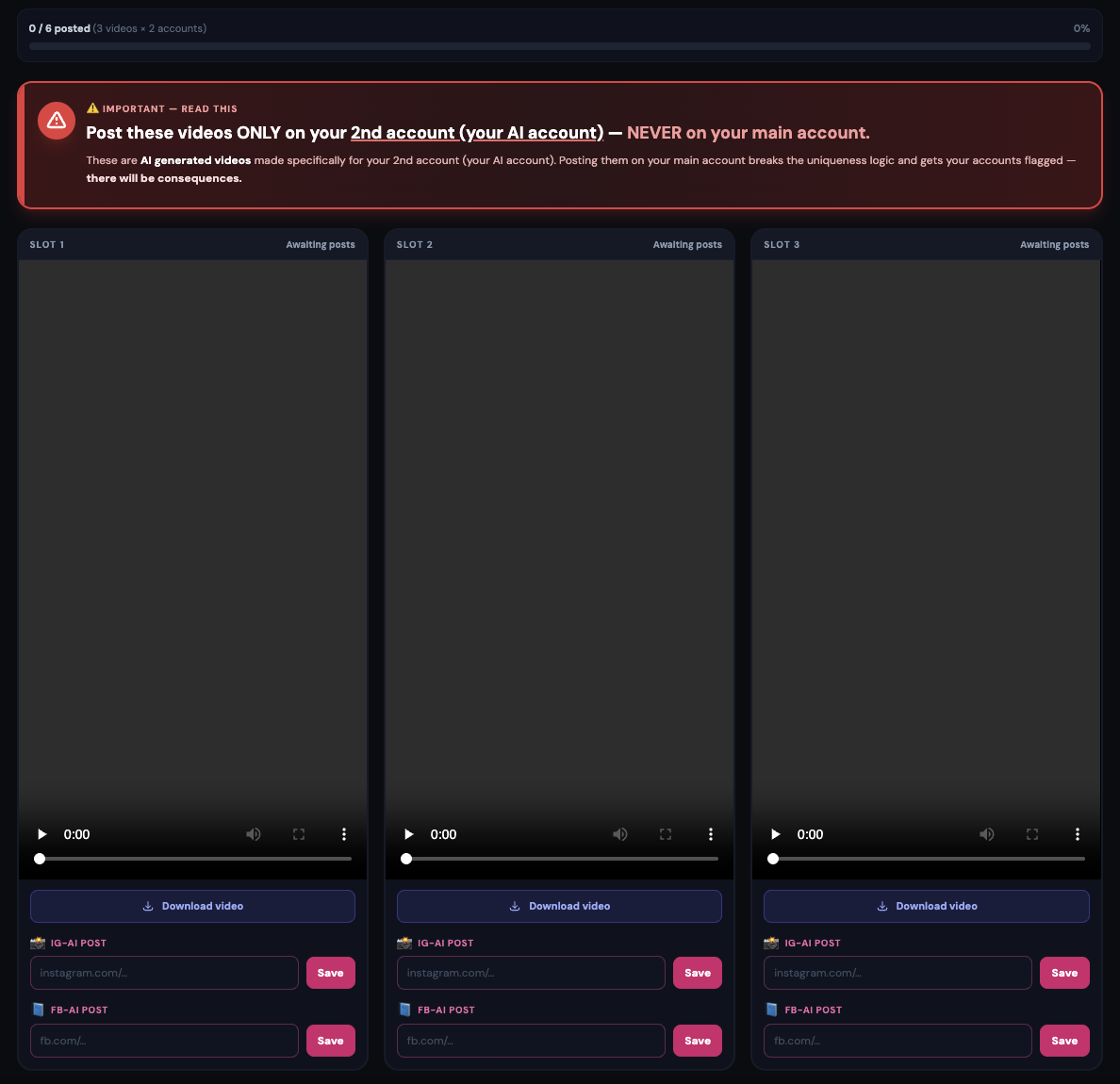
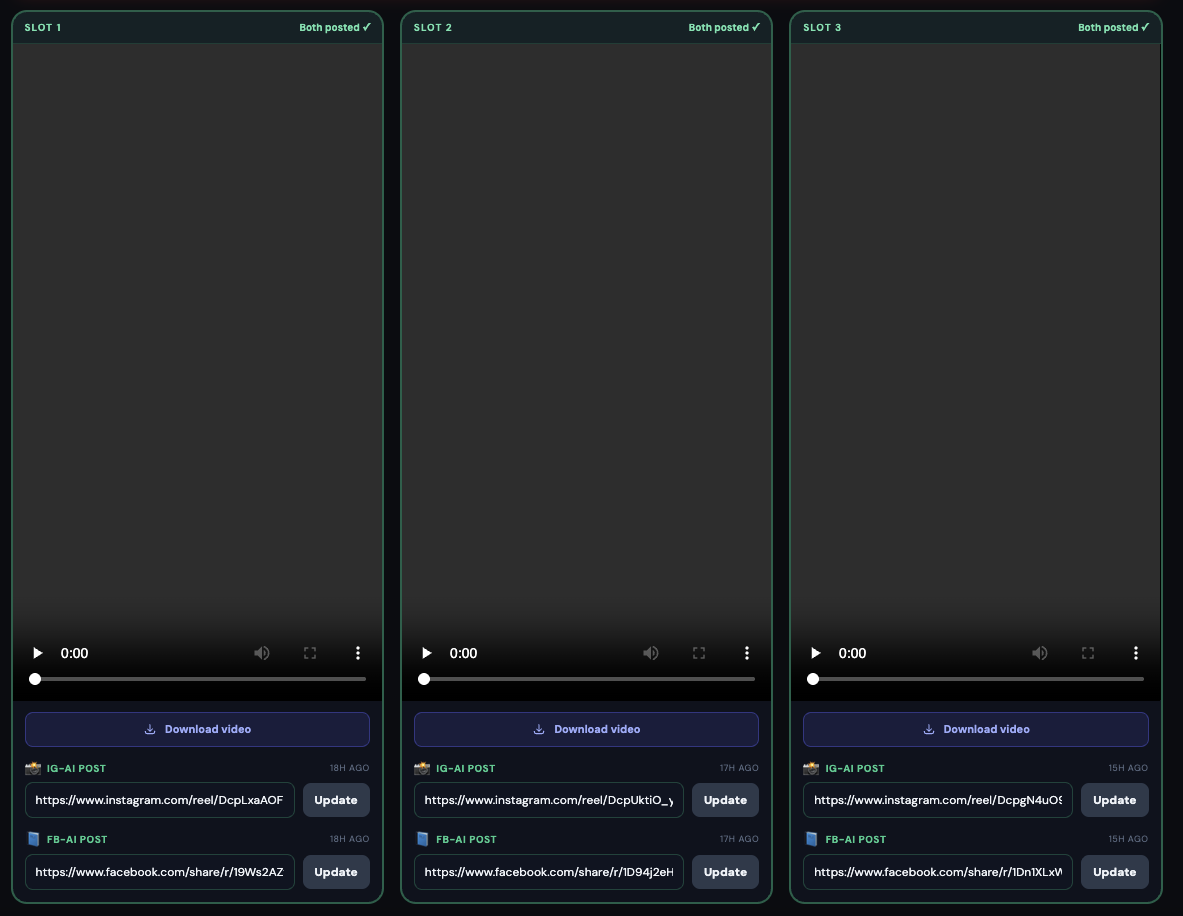
Workflow
- Tap the download icon on each video to save it.
- Post it on the IG-AI account (and if the video is dual-platform, also on FB-AI).
- Copy the post URL(s).
- Paste them into the fields next to the video and tap Save.
Daily AI Videos count toward your Home progress bar and toward your Posts metric. Same as normal feed posts.
Analytics
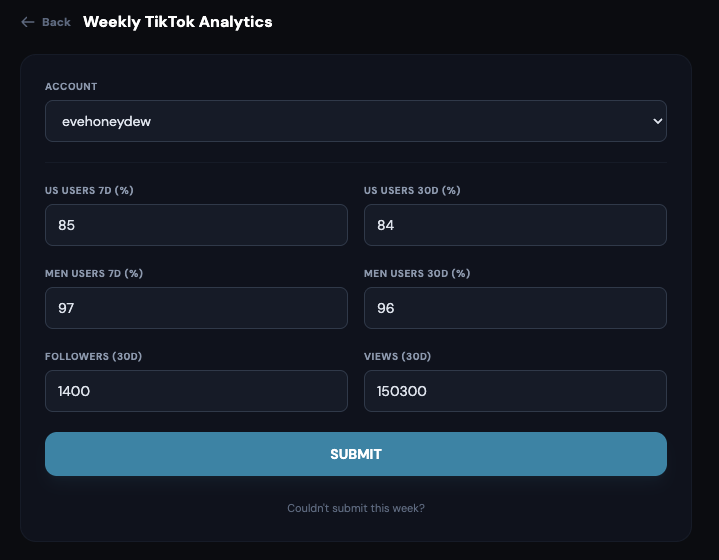
Once a week you submit weekly analytics for each of your accounts. This is how admin knows what's actually working: audience make-up, followers gained, views. The screen is called "Submit Weekly Analytics".
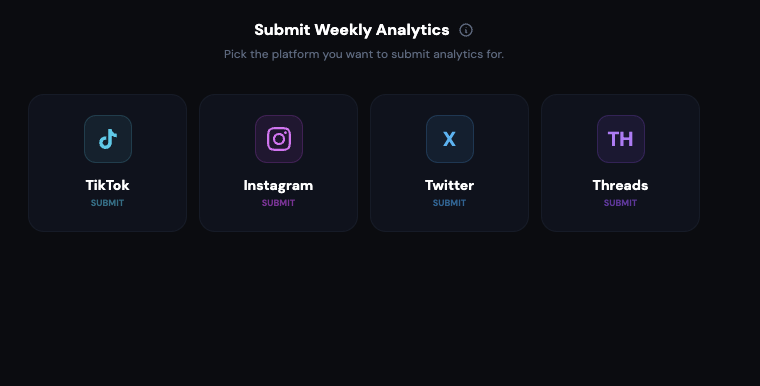
Step 1: pick a platform
When you open the Analytics tab you land on a page with four platform cards: TikTok, Instagram, Twitter, Threads. Each card shows the platform name and a small SUBMIT label. Tap the card for the platform you want to submit numbers for.
Step 2: pick the account
The form opens with an Account dropdown at the top ("Select an account"). Pick the specific account you're submitting for. There is a Back button at the top-left if you picked the wrong platform.
Step 3: fill in the six numbers
Every submission has six required number fields, arranged in three rows of two:
- US Users 7d (%). What percentage of your followers is based in the United States, looking at the last 7 days.
- US Users 30d (%). Same, but looking at the last 30 days.
- Men Users 7d (%). What percentage of your followers is male, last 7 days.
- Men Users 30d (%). Same, last 30 days.
- Followers (30d). How many followers the account gained in the last 30 days.
- Views (30d). Total view count over the last 30 days.
Where to find these numbers on the platform
- Open the platform app on your phone (Instagram / TikTok / Twitter / Threads).
- Go to the account profile, tap Insights or Analytics.
- Look at both 7-day and 30-day time ranges (some platforms let you toggle, others need two visits).
- Read off the audience percentages (US, Men), the follower gain, and the total views.
- Type them into the dashboard form and tap the big SUBMIT button at the bottom.
Couldn't get the numbers for an account?
Same principle as "Couldn't post" on Tasks: never leave a week un-submitted without an explanation. Under the SUBMIT button, at the very bottom of the form, there is a small red link: Couldn't submit this week?. Use it when an account was banned, locked out, has no insights available, or is otherwise inaccessible.
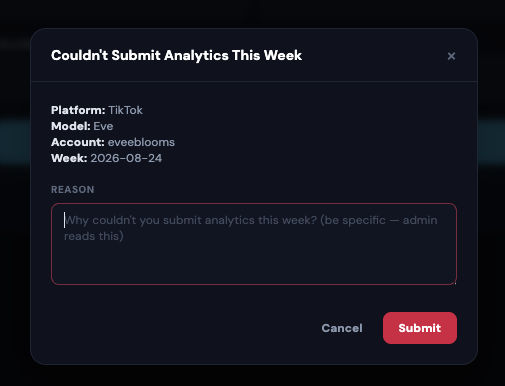
- Tap Couldn't submit this week? at the bottom of the form.
- A modal opens. Pick the reason (banned, locked out, no insights, or type a custom reason).
- Submit. Admin reviews it and either approves (the account is marked "handled" for the week) or rejects (you need to try again).
Research
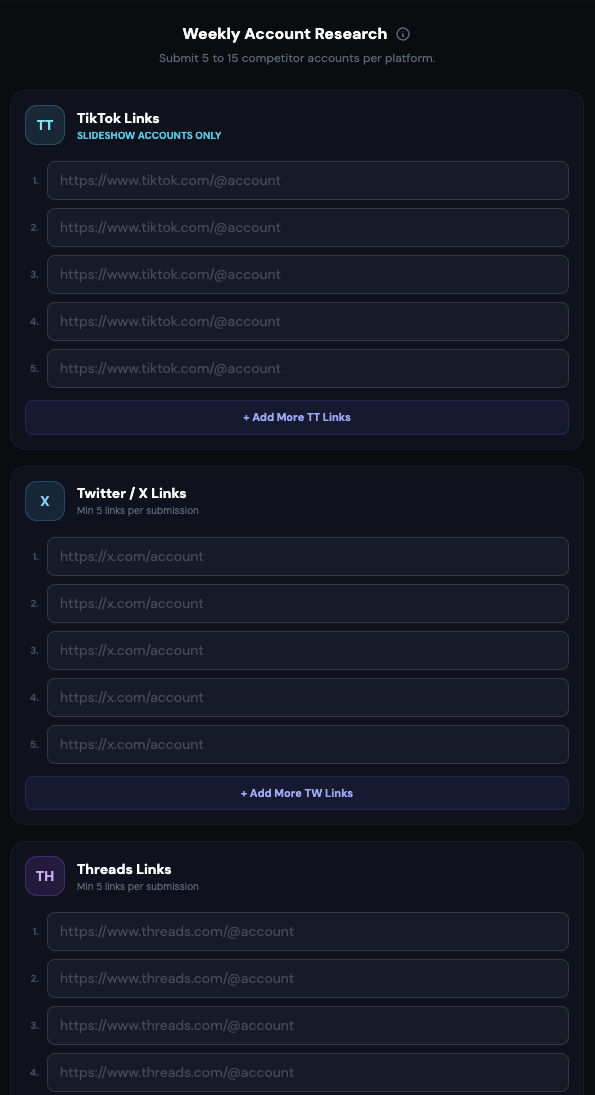
The Research tab is where you submit competitor account links you found on the platforms. Accounts similar to your model that are doing something interesting. Admin uses these lists to spot content trends and decide the model's next direction.
What the page looks like
Title at the top: Weekly Account Research. Sub-line: "Submit 5 to 15 competitor accounts per platform." Below that, three platform cards side by side, one per platform:
- TikTok Links (cyan). Small note underneath: SLIDESHOW ACCOUNTS ONLY. Only submit TikTok accounts that post slideshow-style content, not regular video creators.
- Twitter / X Links (sky blue). Min 5 links per submission.
- Threads Links (purple). Min 5 links per submission.
Adding links
- Under each platform card, an empty input row appears by default.
- Paste the profile URL of the competitor into the input.
- Need more inputs? Tap the + Add More TT Links (or TW / TH) button under the card. A new input row is added.
- Repeat until you have at least 5 (and up to 15) links per platform you're submitting for.
- Tap the big SUBMIT RESEARCH button at the bottom to save the whole batch.
Account Requests
Use this tab when something about one of your existing accounts changes and admin needs to update the dashboard to match. This is the official channel: do not DM admin about it, put it here so it's tracked and admin can approve or reject with a reason.
The page layout
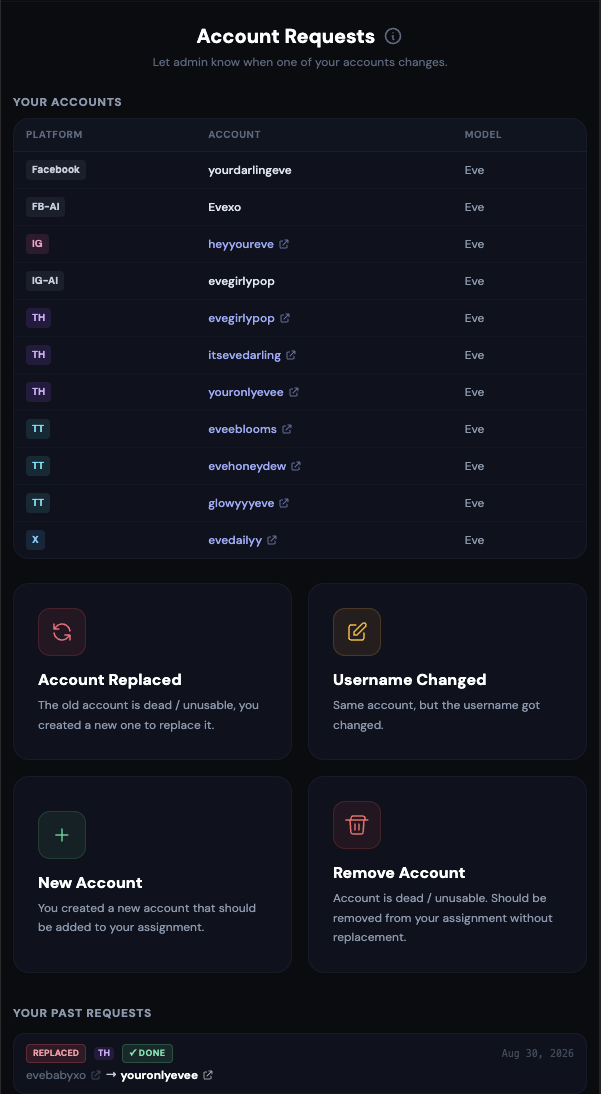
Title at the top: Account Requests. Sub-line: "Let admin know when one of your accounts changes."
- First, a read-only Your accounts block showing every account currently assigned to you. Use this to double-check the handles before filing a request.
- Below that, three action cards (one per request type, see next section). The old "New Account" card is deprecated. Use Registration for new accounts.
- At the bottom, Your past requests: the history of every request you've filed with its current status.
The three request types
Account Replaced (red / rose card)
Use when "the old account is dead / unusable, you created a new one to replace it." Old handle stays as a record, new handle takes its slot in your assignment. Fill in old handle, new handle, and (usually) the reason the old one died. This is the most common request when an account gets banned. Important: you should have built the replacement through Registration first, then use this card to swap it in for the dead one.
Username Changed (amber card)
Use when "same account, but the username got changed." You changed the handle on the platform itself (Instagram, Edit Profile, Username), and now the dashboard needs to match. Same account, same followers, same everything. Just a new name.
Remove Account (red card)
Use when "account is dead / unusable. Should be removed from your assignment without replacement." Different from Account Replaced: here you're not making a new one, the slot just disappears. Pick a reason and submit. Admin approves or rejects.
Filing the request
- Tap the card for the type you need.
- A form opens with a Back button at the top-left in case you picked the wrong card.
- Fill in the handles and reason the form asks for.
- Submit. The request lands in admin's queue and appears in Your past requests at the bottom of the landing page.
Watching your requests
Every request you file shows up in the Your past requests section at the bottom of the landing view with a status: pending (waiting for admin), approved (done, check the dashboard for the change), or rejected (with admin's reason). Approved and rejected requests stay in the history so you have a paper trail.
Registration
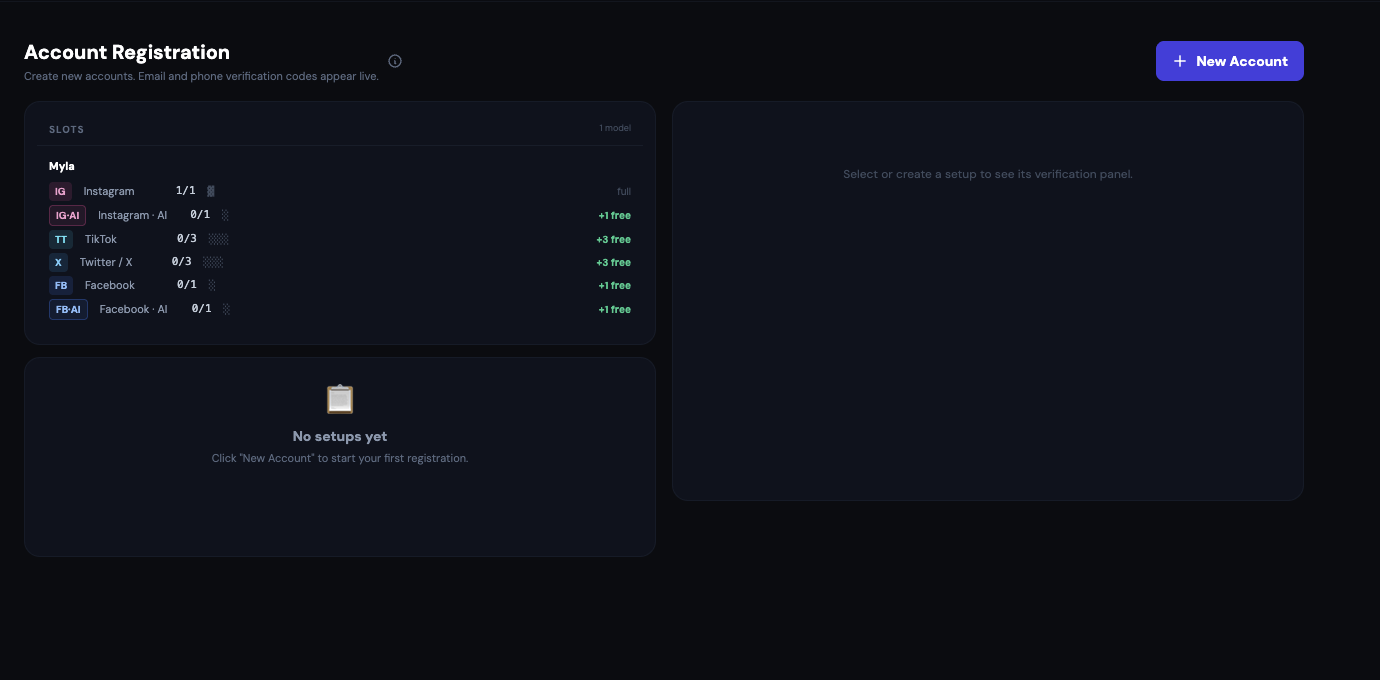
The Registration tab is where you actually build the accounts that later show up in Accounts, Tasks, and Tracking. It gives you a fresh, verified inbox address, catches every verification code and SMS automatically, hands you a phone number when a platform demands one, and files the finished account into your assignment. Sub-line at the top: "Create fresh accounts end-to-end. Emails, SMS codes and phone numbers all land here."
Registration vs. Account Requests: who does what
Two tabs, two different jobs. Do not mix them up.
- Registration (this tab): for every new account you build from scratch. Instagram, TikTok, Twitter/X, Facebook, IG-AI, FB-AI. Registration is now the only correct way to add a new account. It handles the email, the codes, the phone, and drops the finished account straight into your assignment when you activate. No admin approval needed.
- Account Requests (section 11): only for changes to accounts that already exist. Replacing a banned one, renaming (you changed the handle on the platform), or removing a dead slot with no replacement. Admin has to approve these because they modify your assignment directly.
Example: your Myla IG account got banned
Say your Instagram account @mylapanda for the model Myla just got banned. Here is the correct flow now:
- Go to Account Requests and file a Remove Account request for
@mylapanda. Pick "banned" as the reason. Once admin approves, that slot frees up. - Come back to Registration, start a new setup for Instagram + Myla, and build the replacement account through the normal Registration flow (fresh email, verification code, phone if needed, then Activate).
- Done. The new account lives in your assignment, and the dead one is gone.
The slot overview at the top
Before you can register anything, look at the top of the tab. There is a Slot overview row, one card per model you work on. Each card lists your quota per platform.
Each platform line reads like "IG 2 / 3" which means: 2 accounts filled, 3 allowed, 1 slot still free. A green "+ free" tag means you can start a new setup for that platform right now. No tag means the platform is full and you have to close or replace an existing account (through the Account Requests tab) before you can register another one on that platform.
Starting a new account setup
Tap the big indigo New Account button in the header. A small dialog opens.
- Pick the platform (Instagram, TikTok, Twitter / X, Facebook, IG-AI, FB-AI). The dropdown only shows platforms you actually have a free slot for on at least one of your models. If your only free slot is on Twitter, only Twitter appears.
- Pick the model. Same rule: only models where you have a free slot on the chosen platform. If you work on two models (multi-team), you decide here which one this account is for. The team follows the model automatically. You do not have to think about SASM vs. SASM-D at this step.
- Add a short reason (optional but strongly recommended). "Old one banned", "new backup", "warmup slot 3". Helps admin later when they audit account changes.
- Tap Start. The dialog closes, a toast at the top-right confirms "Setup started, email copied", and the fresh email address is already on your clipboard.
Signing up on the platform itself
Now switch to the platform app on your phone (or a browser). Start their normal signup flow (email based). When they ask for an email, paste the address you just got from Registration.
- Instagram / TikTok / Twitter / Facebook: use the Sign up with email path (not phone, not Google).
- Paste the email address you copied.
- Choose the password you want to use for this account. Write it down or keep it somewhere you can find later. You will need it in the final step below.
- Finish whatever the platform asks for: date of birth, name, gender, and so on. Use the details that fit the model, not your real ones.
- The platform will send a verification code (a 4 to 8 digit number, or a link) to that email.
Reading the setup panel
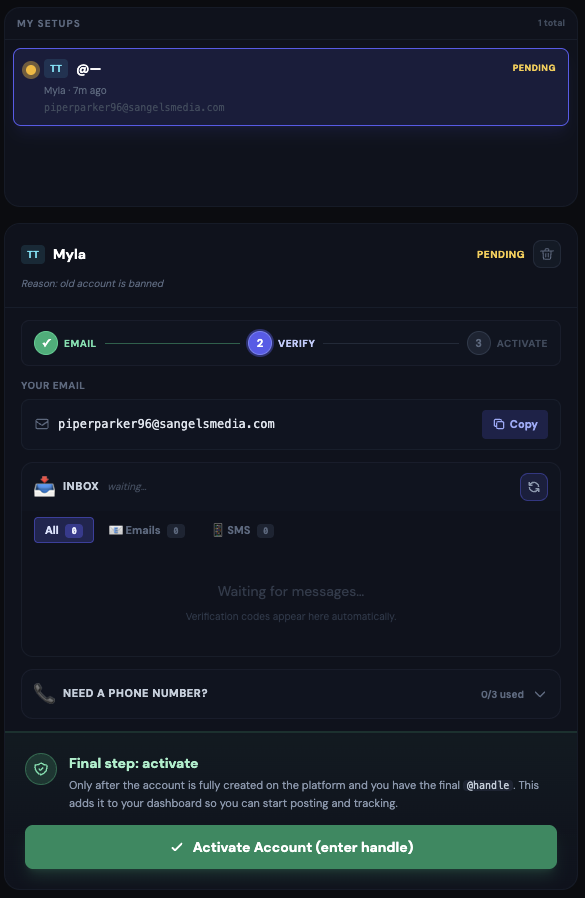
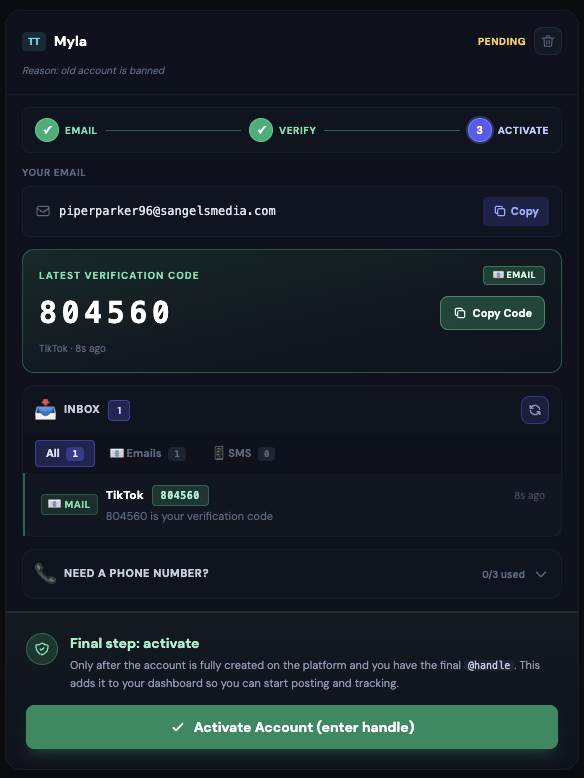
After you started the setup, the tab shows a panel for it. From top to bottom you see:
- Header: platform badge, model name, status (pending / active), and a small trash-can icon on the right. That icon is the delete button (see "Deleting a setup" further down).
- Progress row: three dots labelled 1 Email · 2 Verify · 3 Activate. Green means done, indigo means "you are here", grey means not yet. Use this to see at a glance where you are in the flow without reading the whole panel.
- Your email: the generated address with a Copy button next to it. Tap Copy if you need to paste it again on the platform.
- Latest Verification Code: a big highlighted box that appears only when a fresh code has landed (email or SMS, less than 15 minutes old). Copy it with one tap, no scrolling. Once the code ages out, the box disappears and you find it in the Inbox below instead.
- Inbox: the full message history. Every mail and every SMS lands here, newest first, with sender, subject, and time. Tabs at the top let you filter to Emails only, SMS only, or All. Tap any row to expand it and read the full body. A refresh icon in the header pulls new messages on demand (the tab already auto-polls every few seconds).
- Phone verification: collapsed by default. Only expand it if the platform actually asked you for a phone number. See the next section.
- Final step: the big green Activate button. Only tap this once your account is fully created on the platform.
Email first, always. Phone is the last resort.
Common cases where phone is genuinely needed: Instagram sometimes demands a phone right after signup, especially on fresh IP + fresh device. Facebook occasionally does the same. TikTok almost never. And any account that gets banned or hit with a phone-challenge later on will need a phone number to unlock.
Common cases where phone is NOT needed and you should NOT order one: the platform accepted your email verification and let you continue → no phone needed. The platform is slow / didn't send the email yet → wait or refresh, do NOT skip to phone. The signup form has a phone field but says "optional" → skip it.
The two hard caps you cannot go past
- Per-setup cap: 3 phone attempts per setup, rolling 7-day window. If you burn through 3 numbers on one specific signup (Instagram · Bella, say), you have to wait until the oldest one is more than 7 days old before you can try that setup again.
- Per-worker cap: 3 phone numbers per 24 hours across ALL your setups. This one is new. It stops you from spraying phone numbers across a dozen fresh signups in one day. Whichever cap you hit first blocks the button, the phone panel shows an "X/3 left today" counter next to the weekly counter so you always see both.
Reserve-failures (the provider had zero numbers available for the platform at the moment you asked) do not count against either cap. Only orders that actually landed a live number count.
Requesting a number (when you truly need one)
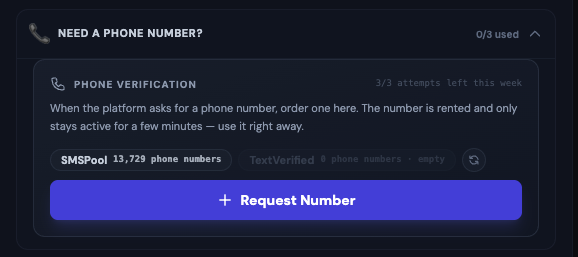
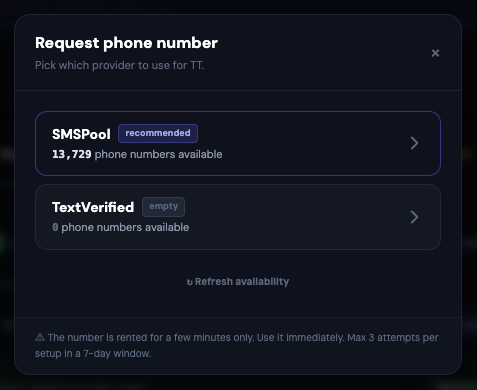
- Find the "Need a phone number?" row in the setup panel (between the Inbox and the Activate button). Tap it once to expand it. The block is collapsed by default because most signups never need a phone.
- Read the two counters in the row's header: 3/3 attempts left this week (per-setup) and 3/3 left today (per-worker). If either shows 0, the button is disabled and a red notice explains which cap you hit.
- Tap the big indigo Request Number button inside the expanded block. A confirm dialog spells out both caps again, accept only if you actually need the number.
- A popup opens showing the available providers (SMSPool and TextVerified) with live availability counts for the platform you picked. Tap the provider you want. If one shows 0 numbers, pick the other.
- A number appears in a monospace box at the top of the Phone block. Copy it and paste it into the platform's phone field immediately. Do not switch tabs, do not scroll social media, do not start dinner.
- The platform sends an SMS with a code. The SMS shows up in the same Inbox as the emails. Copy the code and paste it into the platform.
- Once the platform accepts the code, you are done with the phone step. Move on to Activation.
The final step: Activate the account
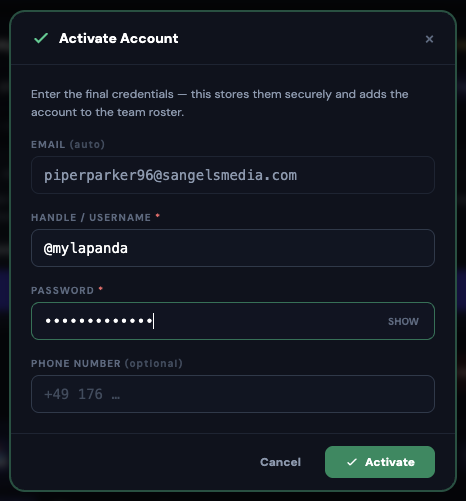
After you finished the signup on the platform side and got in, come back to the Registration tab. The setup panel still shows your active setup. At the bottom is a big green Activate Account (enter handle) button.
- Tap Activate Account.
- A dialog opens with three fields:
- Handle (required): the exact username the platform gave the account. No @ needed, just the handle. If it is @iammadelynnn on Instagram, type
iammadelynnn. - Password (required): the password you set during signup. This gets stored in the credential vault so admin can recover the account later if you get locked out.
- Phone (optional): only if you actually attached a phone. Include the country code.
- Handle (required): the exact username the platform gave the account. No @ needed, just the handle. If it is @iammadelynnn on Instagram, type
- Tap Activate. A toast confirms "Account activated as [handle]". The setup moves from pending to active. The account now exists in your Tasks, Tracking, and Accounts tabs, tagged to the correct model and team.
Your registered accounts (list below the setup panel)
Below the active setup you see a list of all setups you have created through this tab. Each row shows:
- The account handle (or @: for setups still pending).
- The platform badge (IG / TT / TW / FB / etc.).
- The model it belongs to.
- Status: pending (setup started, not activated yet), active (account is live and in the dashboard), or canceled (setup abandoned or deleted).
- The date the setup was created.
Tap a row to open it. Pending setups take you back into the setup panel so you can pick up where you left off (finish activating, request another number, re-copy the email). Active setups also open in the same panel, but the Activate button is gone. Instead you can request a fresh phone number for the existing account (see next section).
When an account gets banned and you need a new phone code
This is what the tab is for after go-live. If your account is fine there is no reason to touch it. When the platform locks you out and demands SMS re-verification (a "phone challenge"), the Registration tab is where you request a fresh number for the existing account. But there are two different situations depending on whether the account was created through Registration or already existed before, and the steps are different. Read carefully.
Situation A: The account was created through Registration
If you originally built this account yourself using the New Account button, it already has a setup row in your list. That row stays there forever, even after the account is fully active, so you can come back and request a phone number for it any time.
- Open the Registration tab.
- Find the account in the setup list on the left. Look at the handle text (like
@iammadelynnn) and the platform badge, that is how you identify it. - Tap the row to open its setup panel on the right.
- Expand the Phone verification row (labelled "Need a phone number?" when collapsed). Because this setup is already active, you will see a Request New Number button (amber) instead of the indigo first-time one.
- Tap it. Same provider popup as always. Pick a provider, paste the number into the platform's challenge screen, wait for the SMS to land in your Inbox, copy the code back.
- Once the platform accepts and you are back in, you are done. Nothing to Activate this time (the account already exists), just close the panel.
Situation B: The account is old, it was created before Registration existed, or admin added it for you manually
These accounts show up in your Tasks, Tracking and Accounts tabs like any other assignment, but they do not have a setup row in Registration because they never went through the Registration flow. So the steps from Situation A do not work, there is no row to tap. Instead, you build a "recovery" entry that lets you request a phone number for that existing account without creating a whole new signup.
- Open the Registration tab.
- At the top-right of the tab you see two buttons side by side. The indigo New Account button (which you already know) and, to its left, an amber 🔁 Recover Existing button. Tap Recover Existing.
- A dialog opens with a yellow explanation banner at the top, then two fields:
- Account to recover, a dropdown grouped by model. It shows every account currently assigned to you that does not already have a setup. Pick the one you need to phone-verify. If your account is not in the list, either it already has a setup (see Situation A) or it is not in team_structure yet, ping admin.
- Reason (short), a few words about why you need this recovery: "banned", "phone challenge", "locked out", "action block". Not strictly required but strongly encouraged so admin can see later why you did the recovery.
- Tap Create Recovery Setup. A toast confirms the recovery is ready. The dialog closes and a new row appears in your setup list with a small amber 🔁 Recovery badge next to the handle.
- Tap that new row. The setup panel opens in a simplified mode:
- No email block (recovery setups do not need a new email, the account already has one on the platform).
- No Email → Verify → Activate progress bar. Instead you see a yellow "Recovery for existing account" banner explaining that only the phone step is active.
- No Activate button at the bottom (the account is already in your assignment, nothing to activate).
- The Phone verification block is open by default, because that is the only thing you are here to do.
- Tap Request Number inside the Phone verification block. Pick a provider from the popup. A number appears, copy it and paste it into the platform's challenge screen.
- The SMS shows up right in the same phone-verification panel. Copy the code, paste it into the platform, confirm.
- Once the platform accepts and you are back in, close the recovery. See the next section for how.
Closing a finished recovery
Once the platform has accepted your SMS code and you are back in, the recovery setup has done its job. You should close it so it drops off your setup list.
- With the recovery setup panel still open, tap the small × icon in the top-right of the header (right next to the status badge).
- A confirm dialog reminds you: "The account itself stays in your assignment, this only clears the recovery entry from your setup list." Confirm.
- The recovery setup disappears from your list. The underlying account is untouched.
What if I actually want to remove the account entirely?
Registration cannot remove old accounts, only close their recovery. If you truly need to take an existing account out of your assignment (it is dead, banned permanently, or being replaced), that goes through Account Requests → Remove Account, which requires admin approval.
- Recovery closes → nothing changes in your assignment. Use for finished phone challenges.
- Account Requests → Remove → admin approves → account is gone from your assignment. Use for permanently dead accounts.
Edge cases you might hit
- "This account is not currently assigned to you" when creating a recovery: the account is not in your team_structure. It might be assigned to someone else now, or the handle in the dropdown does not match what team_structure has. Ping admin.
- The account is missing from the Recover dropdown: either it already has a setup (Situation A applies, check the setup list) or team_structure lost the row. Search the Accounts tab. If you see it there but not in the recover dropdown, ping admin, data got out of sync.
- You did a recovery, ordered a number, but the SMS never came: same rules as a normal Registration phone request. You have up to 3 phone attempts per 7-day rolling window. Cancel the current order and try again with the other provider.
- You closed the recovery, then the platform asks for another phone verify a day later: no problem, do another recovery. Nothing prevents multiple recoveries on the same account over time (though each one costs an SMS attempt against the 3/7d cap).
Deleting a setup
Every setup panel has a small trash-can icon in the top-right of the header (next to the status badge). Tap it to file a delete request. Use it when:
- You started a setup by accident (wrong platform, wrong model).
- The signup failed and you want to release the quota slot instead of waiting 24 hours.
- The account is dead and you want to fully remove it from the dashboard.
Deletion is not instant. It files a delete request that admin has to approve, exactly like an Account Requests removal. Once approved: the email address gets burned (never reused), the phone orders get closed, and if the account was already active it is removed from your team_structure. If you just want to start over quickly and the setup is still pending, you can also let it expire (24 hours) instead of filing a delete.
What to do when things go wrong
- Toast says "SLOT_FULL": your quota for that platform/model is used up. Either delete an existing setup or file an Account Requests Remove to free the slot.
- Toast says "NO_QUOTA": admin has not configured a quota row for you on that model / platform. Ping admin.
- Toast says "RESERVE_FAILED": the SMS provider had no free numbers at that moment. Try the other provider in the popup. If both are empty, wait 10 minutes and try again.
- The Inbox stays empty after signup: refresh once with the small circle-arrow button, then double-check the email address you actually pasted on the platform. Copy-paste on mobile drops characters more often than you would think.
- The verification code arrived but the platform says it is wrong: the code has probably expired (most codes are valid for 10 to 15 minutes). Request a new one on the platform's side. The new code lands in the same Inbox.
- You already activated but the account does not show up in Tasks: hard-reload the dashboard (see FAQ). Tasks caches the assignment for a minute.
Feedback
Your Feedback tab is a two-way channel with admin and your supervisor. You read what they wrote to you, and you write back: reply to notes, or start something yourself by reporting an account incident or sending a note upward. Sub-line at the top: "Send notes to admin and report account incidents."
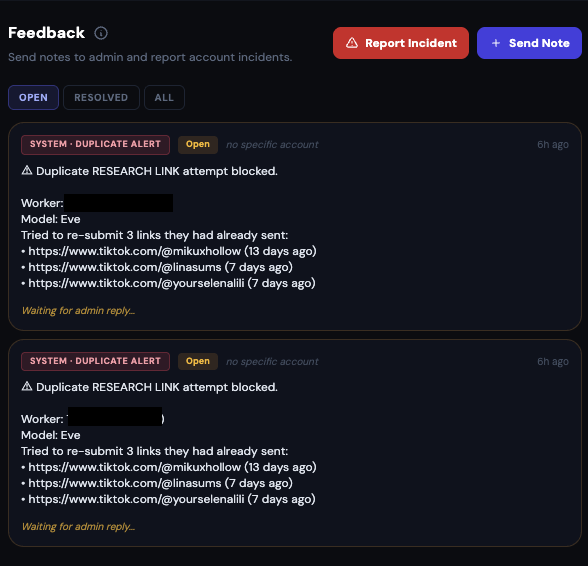
Top-right of the page: two buttons
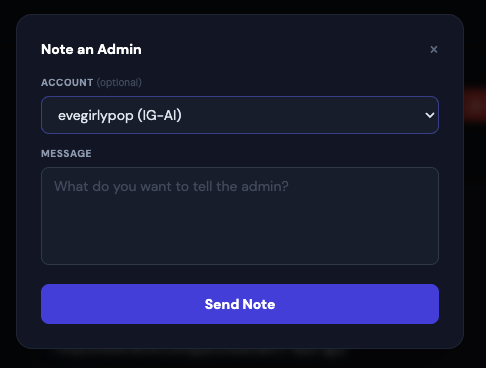
- Report Incident (red button). Use this the moment something happens to one of your accounts: ban, shadowban, login lock, action block, takedown, warning. Opens a modal where you pick the account, pick the incident type, and describe what happened. The report immediately shows up on admin's side and on your Home page (Open account issues banner).
- Send Note (indigo button). Write a free-form note to admin. A question, a heads-up, an idea. Opens a modal where you type the note and submit.
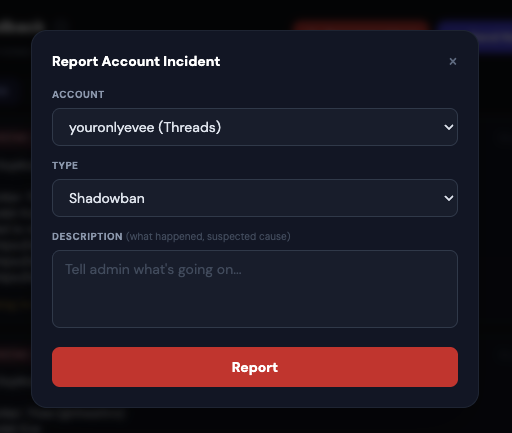
What appears below the buttons
- Open account incidents at the top. Every active incident on one of your accounts, one block per account.
- The note thread below that. Every note between you and admin / supervisor in chronological order. Includes notes admin wrote to you, notes you wrote to admin, replies on both sides.
Note types you'll see from admin / supervisor
- Personal notes. Direct messages like "Fix the bio on @acc, grammar issue."
- Weekly supervisor reviews. A rating (1 to 5 stars) plus written feedback about your week.
- Incident replies. When you reported a ban and admin responded, the response lands here as a reply chip on that incident's thread.
- Automatic tags. The system flags things like "missed 3 posts this week" or "no research submitted."
Replying to a note
- Find the note in the thread.
- Tap the small Reply link on the note.
- A text box opens below. Type your reply and submit. Your reply appears as an indented chip under the note.
Notes badge in the sidebar
When you have unread notes, a small red badge appears on the Feedback tab in the sidebar showing the count. Don't let it sit above 0 for long.
Guides
The dashboard has up to four Guides in the sidebar. Each one is the agency handbook for a specific platform: content standards, do's and don'ts, banned words, posting best practices, tone, safety. Reading a guide is not optional. Every Guide also acts as a gate: finishing it unlocks the matching Intel Tools (see the next section).
The four Guides
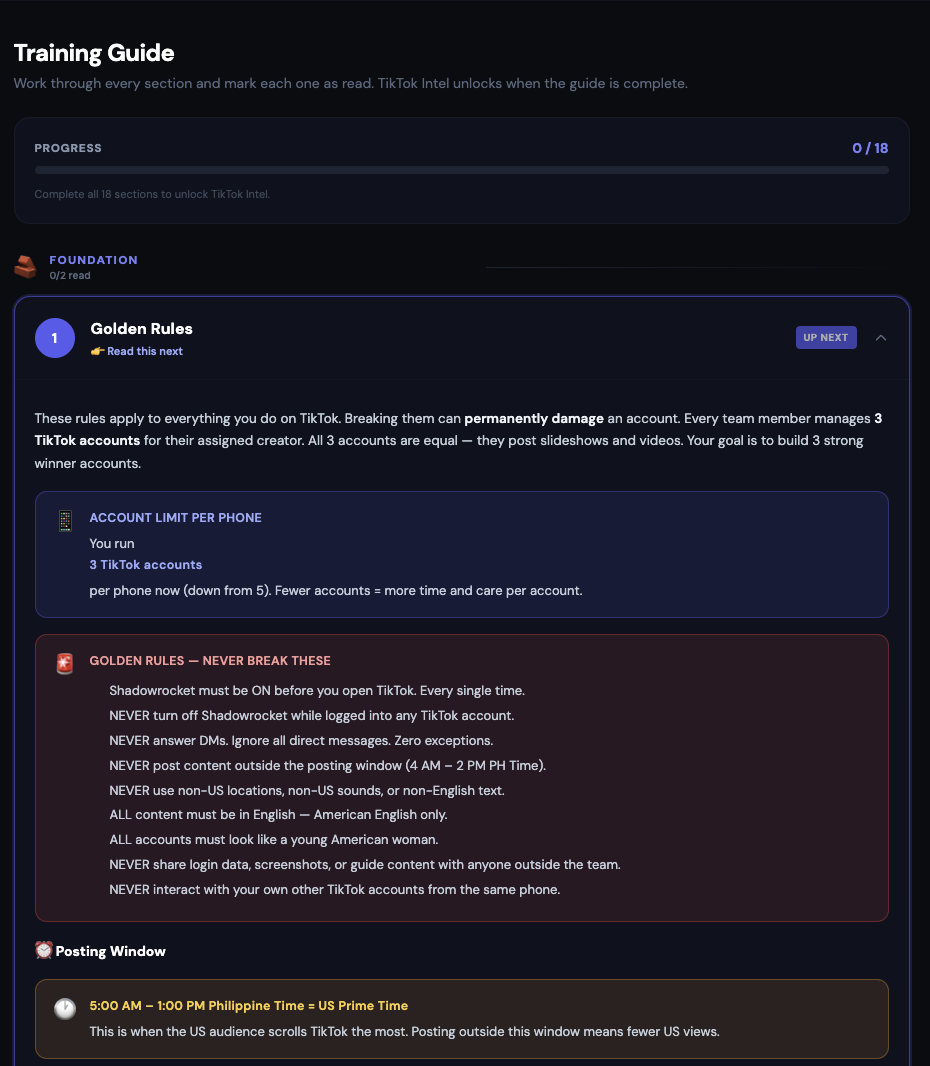
- Guide (Sunny Angels main Guide). The core agency handbook. Always visible. Reading this fully unlocks the TikTok Intel Tools: Viral Posts, Viral Videos, Sounds, Hashtags, Generator.
- TW Guide. Twitter / X specific rules. Reading it fully unlocks the Twitter Intel Tools: Viral Posts, Viral Videos, Slide Texte, Bios, Strategy.
- TH Guide. Threads specific rules. Reading it fully unlocks the Threads Intel Tools: Viral Posts, Slide Texte, Bios.
- FB Guide. Facebook specific rules. Only visible if you have Facebook accounts assigned. Currently no Intel tools attached, just the guide itself.
How a Guide is organized
Each Guide is split into sections. Topics vary per guide but usually cover Content, Bios, Captions, Reels, Analytics, Do/Don't lists. You scroll through them one by one. Sections auto-mark as read as you scroll past them, so you do not need to click a checkbox on every one, just actually read them.
Completion tracking + progress badge
A small badge next to the Guide tab name shows your progress (like 3/12). Once you've scrolled through every section, the badge turns green and the matching Intel Tools appear in the sidebar. Admin sees your Guide progress on their side, so skimming through without reading is visible.
Intel Tools
The Intel Tools are inspiration and research tools per platform. They show you what's currently working on TikTok, Twitter, and Threads: viral posts, popular sounds, trending hashtags, competitor accounts, and a caption generator. Use them before you post to decide what to shoot, what sound to use, what hashtags to add, and how to format your caption.
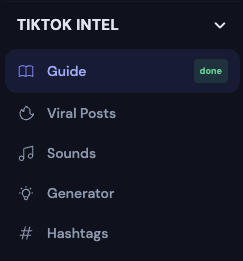
TikTok Intel Tools (unlocked by the SA Guide)
- Viral Posts. Feed of TikToks that recently went viral, sortable and filterable. Look at the ones matching your model's style for content ideas.
- Viral Videos. Similar to Viral Posts but focused on the video content itself: hooks, transitions, formats worth copying.
- Sounds. List of trending TikTok sounds. Copy the sound link and use it on your next post to ride the trend.
- Hashtags. Trending hashtag list. Copy and paste into your captions.
- Generator. A caption / slide-text generator. Give it a topic and it produces caption drafts you can polish and use.
Twitter (X) Intel Tools (unlocked by the TW Guide)
- Viral Posts. Recently viral tweets in your model's niche.
- Viral Videos. Video tweets that took off.
- Slide Texte. Ready-to-use text snippets for slide-style posts.
- Bios. Bio examples from top-performing accounts to inspire your own.
- Strategy. Higher-level posting strategy notes for Twitter / X.
Threads Intel Tools (unlocked by the TH Guide)
- Viral Posts. Recently viral Threads posts.
- Slide Texte. Text snippets that work well on Threads.
- Bios. Threads bio examples.
Facebook Intel
Facebook currently has no Intel Tools attached. Only the FB Guide is available, and only if Facebook accounts are assigned to you.
Profile menu (top right)
Top-right corner of every page: your avatar (an indigo rounded square with the first letter of your name inside), followed by your name and a small down-chevron. Tap anywhere on that block to open the profile menu dropdown.
What's inside the dropdown
- Header strip (top of the dropdown). Shows your worker name and login email so you can double-check you're signed in as the right person, especially on a shared device.
- Switch Model button. Only appears if admin assigned you more than one model. Tap it to open a picker and switch which model's data the dashboard is showing. Everything reloads for the new model: Home, Tasks, Accounts, Tracking, My Performance.
- Logout button (red on hover). Signs you out of the browser and wipes local session data. Use it on shared or public computers, or when you're done for a long time.
FAQ / Troubleshooting
I don't see my accounts
Open the profile menu (top-right) and check which model is selected in the header strip. If you were assigned more than one model and the wrong one is active, tap Switch Model. If the right model is selected but the account list is still empty, tell admin. Your account assignment probably needs to be set up on their side.
My post link was rejected
The URL has to be the specific post URL, starting with https://. The bare profile URL doesn't work. Copy the link using the share icon on the platform, that always gives you the correct URL.
The Reel "Done" button won't accept my link
The link has to be a real Instagram reel URL: https://www.instagram.com/reel/… or https://www.instagram.com/p/…. Nothing else works. If it still fails, the reel may have been reassigned in the meantime. Refresh the page and check the reel card again, or ask admin.
I completed the Guide but the Intel Tools are not showing
Two things to check. First, make sure you actually scrolled through every section (sections auto-mark as read as you scroll past them, so scrolling too fast can skip one). Look at the badge next to the Guide tab in the sidebar, it should be green / full. Second, do a hard refresh (Ctrl+Shift+R on desktop, or pull-to-refresh on mobile). If the tools are still hidden, tell admin.
I switched model but I still see the old data
Do a hard refresh (Ctrl+Shift+R on desktop, or close the tab and reopen it on mobile). Most sections reload automatically when you switch model, but a few cached views may stick until the page reloads.
I forgot my password
Ask admin to reset it. Admin has a Reset button that generates a new password. You get it once, save it immediately somewhere safe. It cannot be recovered later.
My follower numbers went down
Open My Performance and check the Account Health section. If more than a couple accounts are red (declining), open the Quick Leaderboard next to it and see which handles are dropping. Report ban / lockout patterns via Account Requests; for content-driven drops, adjust posting style and ask your supervisor for feedback through the Feedback tab.
My streak reset even though I posted every day
The dashboard counts days in Philippines time (PH). If you post late night your time and it's already past midnight in PH, the post counts for the next PH day. Check the Tasks tab date arrow at the top. If a day genuinely shows all posts done but the streak reset, tell admin.
Something is broken or feels wrong
Send admin a message via Telegram with:
- Which tab you were on
- What you clicked
- A screenshot of the screen
- If you know how: also a screenshot of the browser console (F12, then Console)
The more detail, the faster the fix.
A good day in one line
Log in → check Home for open notes → work through Tasks until the progress bar is full → on Sundays, submit weekly Analytics → log 1–2 Research entries → close the app. Every day.